
This guide covers font library management and the font-related features available in anyui-LIVE.
Overview
anyui-LIVE distinguishes between two related concepts:
| Term | Definition |
|---|---|
| Font | A font file (*.ttf, *.otf, or *.woff2) that you import. It typically contains a complete character set for a language, such as English or Chinese. |
| Font library | A specialized library containing only the partial character set required by the design. It is converted into a C source array and embedded into the generated firmware. |
Importing a font file does not by itself make text renderable: you must create a font library that selects the font file and the characters the design needs. Font files are imported in Resource management.
Related resource concepts are covered in the image guide, and the asset pipeline is described in the codegen guide.
Font library management
Manage font libraries in the Font library view:
- Import the font file in the Resource view; see Resource management.
- Open the Font library view by clicking the Font library button in the view bar.
- Create a font library.
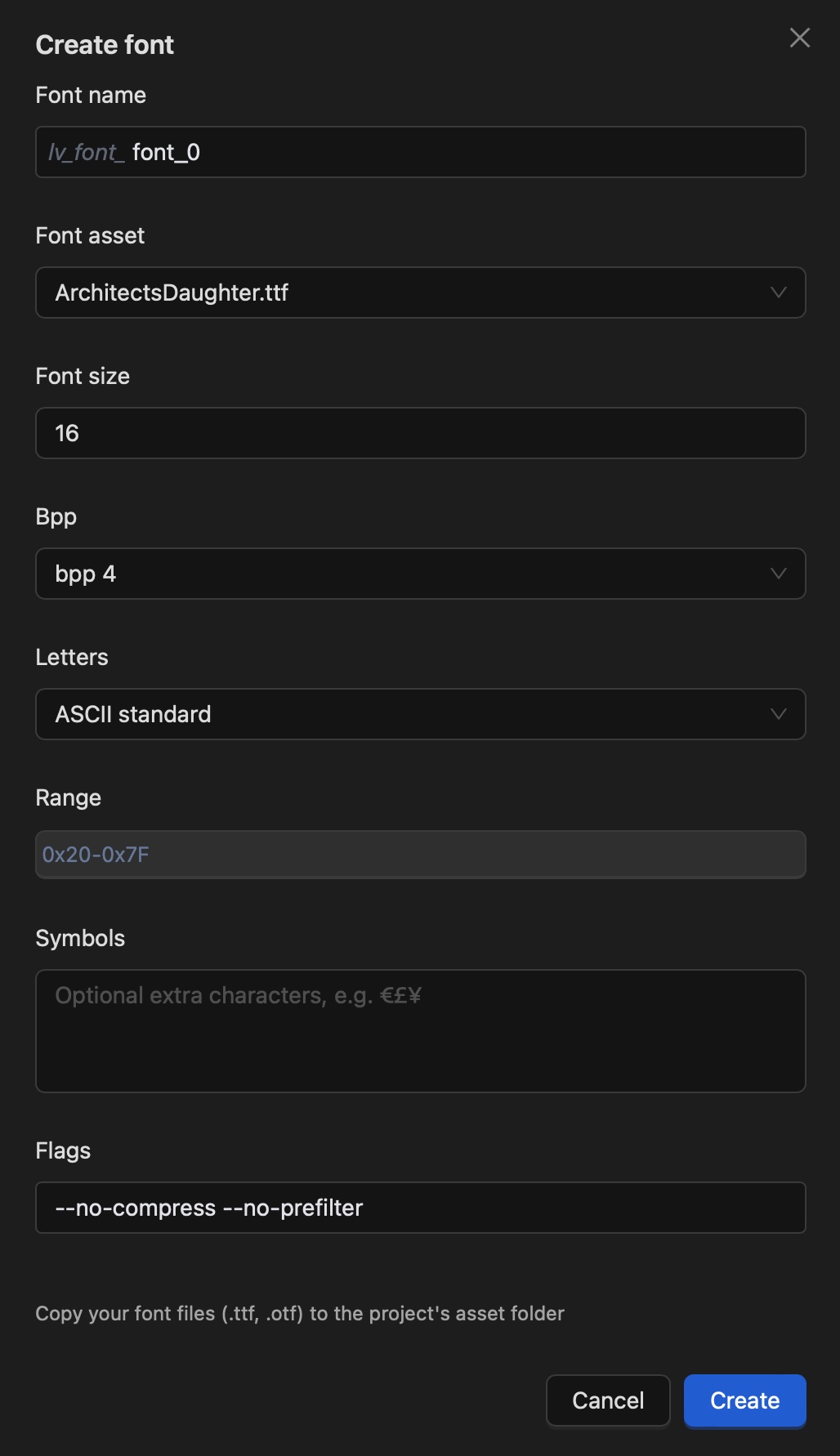
Font library settings
| Setting | Description |
|---|---|
| Library name | The name of the font library; also part of the generated font variable name. |
| Font asset | The font file used by this library. Import the font file in Resource management first. |
| Font size | The font size used when generating the font library. |
| Bpp | Bits per pixel for the generated font. |
| Letters | Preset letters included in the font library. |
| Range | Character range included in the font library. |
| Symbols | Additional characters included in the font library. |
| Flags | Extra options for the font conversion. The default value is --no-compress --no-prefilter. |
For most projects, the most important items are:
- Library name - use a meaningful name.
- Font asset - select the correct font file.
- Range and/or Symbols - at least one of them must not be empty.
If you are not familiar with the other options, keep their default values.
Note
The Flags option controls LVGL font conversion:
--no-compress: do not compress the font.--no-prefilter: do not prefilter the font.
Font library conversion options
At generation time, the font library is converted into a glyph bitmap table. Key conversion options:
- Bpp (bits per pixel) - lower values (e.g., 1 or 2) reduce memory usage at the cost of anti-aliasing quality; higher values (e.g., 4) increase quality and memory use.
- Range - include only the character codes your UI actually uses to keep the font table small.
- Symbols - add specific glyphs (e.g., icons) that are not part of a contiguous range.
Optimizing the character set is the most effective way to reduce ROM usage for font libraries. See the codegen guide for how the emitted font code is integrated into the build.
Warning
You are responsible for ensuring that you have the necessary rights and permissions for every font you import and use.
Related guides
- Resource management - import the font files used by font libraries.
- Image - manage raster assets alongside font libraries.
- Overview - apply typography properties on the canvas.
- Preview - verify font rendering before generation.
- Codegen - how font libraries become generated code.
- Transplant - memory and configuration on the target.
- Simulator - run the application on a local machine.