
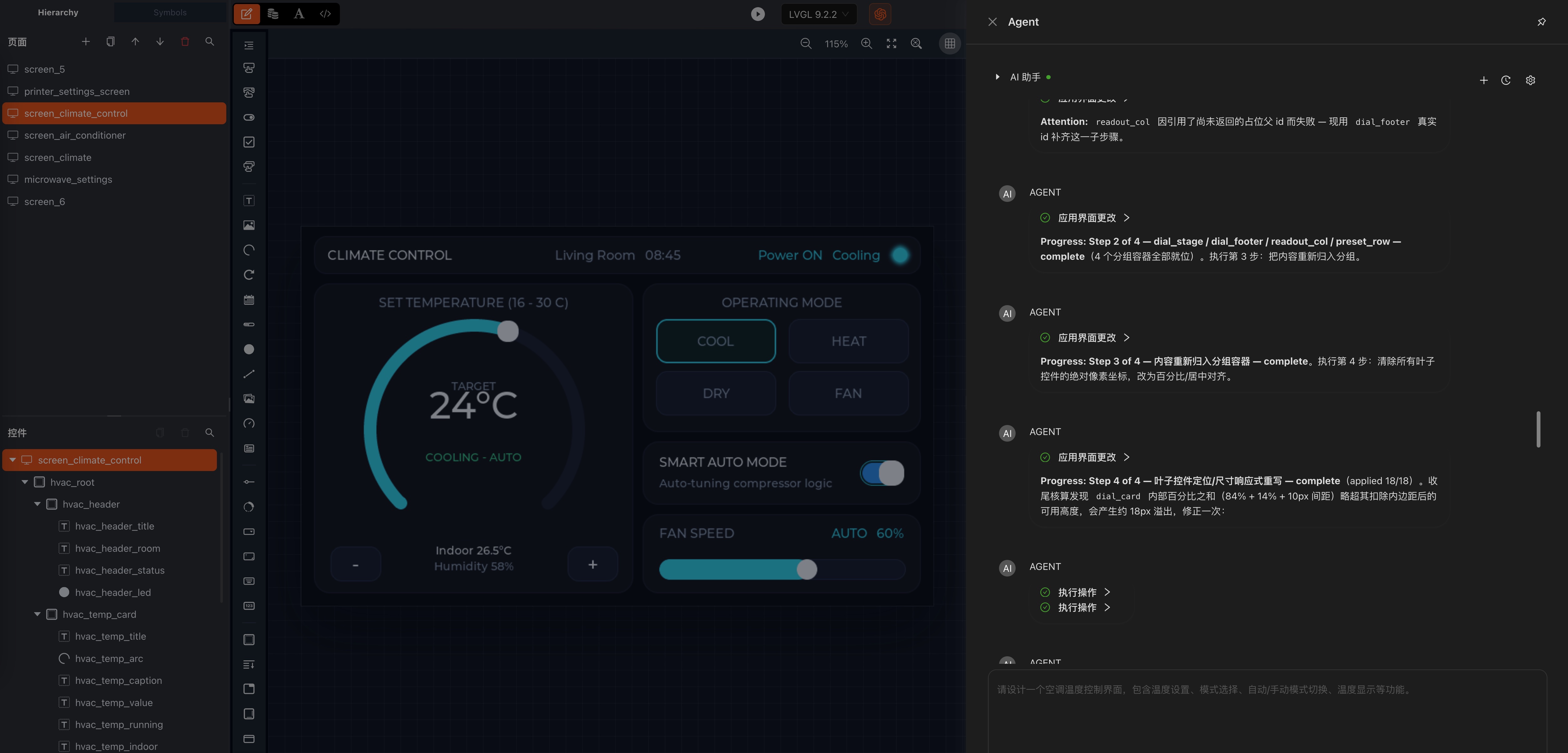
The agent is an AI assistant built into the editor. It is deeply integrated with the editing environment: it stays aware of the current editor context and edits the document to update the user interface for you.
Overview
The agent runs as a panel inside the editor, so it works on the document you are editing rather than on a detached copy:
- It receives the current editor context, including the document, the current selection, and the runtime version.
- It creates, updates, and deletes widgets by editing the document, so the canvas reflects every change immediately.
- Every change is an ordinary document edit, so it can be reviewed and undone with the toolbar's undo/redo commands.
Accessing the agent
Click the Agent icon in the toolbar to open the agent panel. The icon sits in the preview bar, next to the preview toggle and the runtime version selector.
LLM model configuration
Configure the model the agent uses in the agent panel's settings. When no API key is stored yet, the panel shows a prompt that opens the same configuration dialog.
- Open the model settings from the agent panel.
- Select a provider and a model from the available options.
- Enter the API key for that provider and save.
Recommended providers:
| Provider | Models |
|---|---|
| DeepSeek | Recommended. Use the DeepSeek series models. |
| Qianwen | Recommended. Use the Qwen series models. |
Other providers are also available; pick one you already have API access to.
API keys are encrypted before they are stored and are decrypted automatically when the editor starts, so there is no passphrase to unlock. See the FAQ for model selection and connectivity issues.
Warning
Avoid using a VPN connection. Enterprise VPNs, proxies, and antivirus software can reset long-lived connections, which interrupts the streaming channel between the agent and the model and makes the agent display an offline status.
Building a UI with the agent
- Open the agent panel from the toolbar.
- Describe the UI you want in natural language: the screens, widgets, text, and layout you need.
- The agent reads the current context and makes a plan, then executes the plan after it's confirmed.
- Review the result on the canvas. If it is not what you want, keep the conversation going or undo the change from the toolbar.
Because the agent edits the same document you do, changes appear on the canvas as they are applied, and the document stays the single source of truth for code generation.
Conversation history
Your conversations with the agent are stored automatically, so they stay available after you close the panel or reload the editor. Use the agent panel's toolbar to review previous conversations.
Agent settings
The agent settings are in the settings dialog, under the Agent group:
| Setting | Description |
|---|---|
| Max iterations | Maximum number of model turns the agent may run before stopping. The default is 10, and the allowed range is 1-50. |
| Require user approval | When on, every agent widget operation (create, update, or delete) pauses for your explicit approval before it runs. Default is off. |
Max iterations
A complex request can need more turns than the current limit allows. If the conversation stops because the limit was reached:
- Type
continuein the agent input to let the agent carry on from where it stopped. - Increase Max iterations in the agent settings if your requests regularly need more turns.