
The workspace is anyui-LIVE's project-management surface. It is where you create, remove, select, and open the projects you design and generate. This guide covers the workspace project-management workflow.
Overview
The workspace is the project entry point. Rather than a single global document, anyui-LIVE organizes work into individual projects, each with its own screens, components, resources, and configuration. The workspace lists every project and lets you manage them before opening them in the editor for design.
The current English workspace interface is shown below:
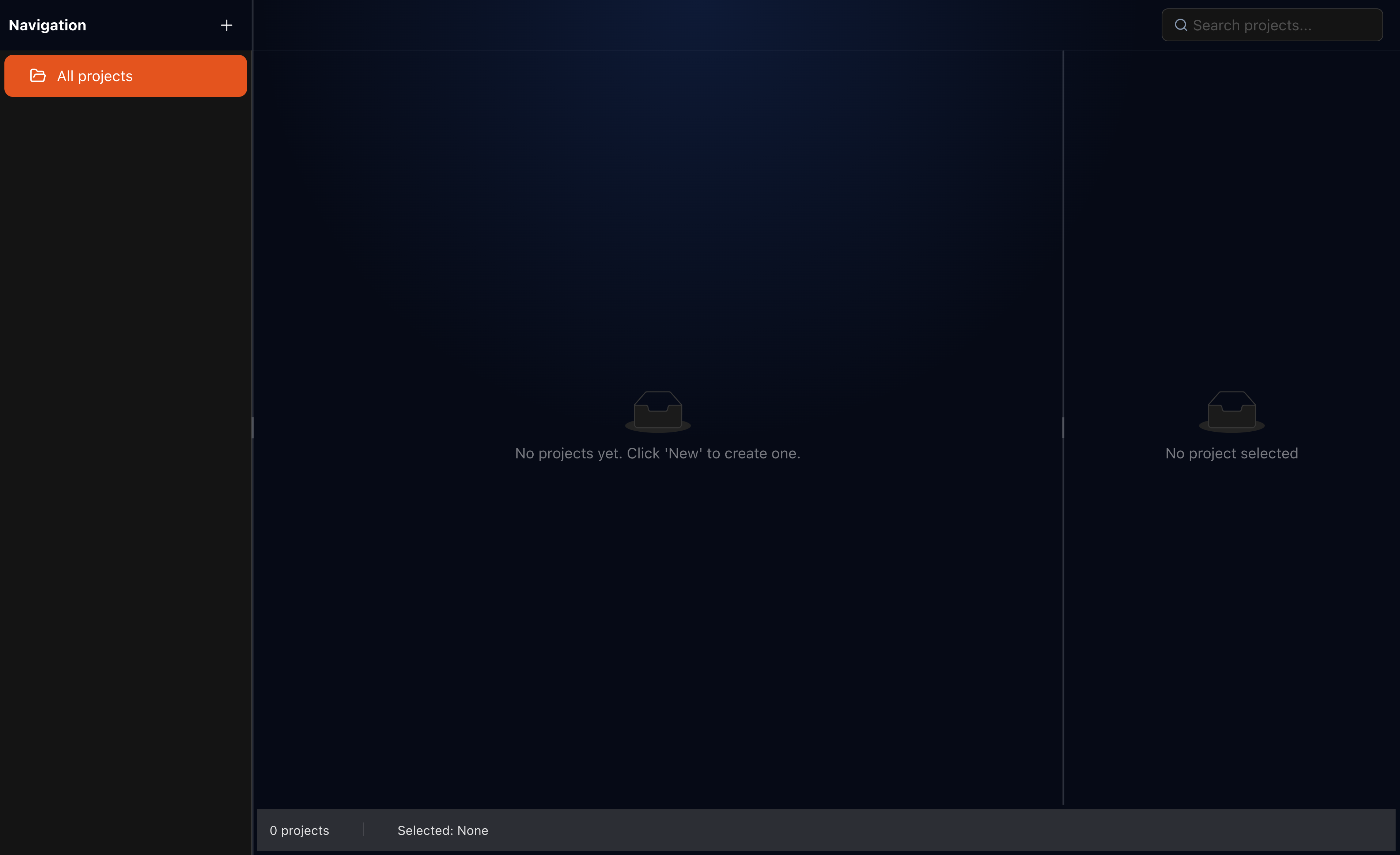
Once a project is open, the screens and resources it contains are described in the image guide, the font library guide, and the codegen guide.
The workspace provides four key capabilities:
- Creating new projects.
- Removing existing projects.
- Selecting a project to view its basic information.
- Opening a project in edit mode.
Creating project
Choose New from the workspace view to open the create-project dialog. The dialog collects the configuration for the new project:
| Setting | Description |
|---|---|
| Name | The project name. |
| Description | An optional project description. |
| Screen width | Horizontal resolution of the target display. |
| Screen height | Vertical resolution of the target display. |
| Color depth | 16-bit or 32-bit color. |
| Target version | The LVGL runtime (and language) version used by the project. |
The screen size, color depth, and target version defaults come from the project defaults, and screen dimensions are bounded by the supported minimum and maximum resolution. After the project is created, it appears in the project list and can be opened from there.
Removing project
To remove a project, use the delete action on its card. A confirmation dialog asks you to confirm the removal.
Warning
Removing a project is irreversible and unrestorable. The project's document, manifest entry, and synchronization records are permanently deleted. There is no undo for this action.
Selecting project
Click a project card to select it. The workspace inspector panel then shows the project's basic information:
- Name and description.
- Target LVGL version.
- Color depth.
- Screen width and height.
- Created and last-updated timestamps.
If a project's document cannot be found, the inspector marks it as unavailable so you can tell the difference between a readable project and one whose data is missing.
Opening project
Double-click a project card, or use its Open action, to open the project in the editor and start designing its screens and widgets. Opening a project navigates to the editor route for that project.
Related guides
- Image - image resources stored in a project.
- Font library - font resources stored in a project.
- Dynamic LVGL version - the LVGL runtime version used by a project.
- Override screen size - overriding a project's display resolution.
- Overview - design screens within a project.
- Preview - run a project in live preview.
- Codegen - generate code from a project.
- Transplant - move generated output to a target device.
- Simulator - run the application on a local machine.